The biggest challenge of any live event is ensuring everything runs smoothly and on time. Whether it's a corporate conference, a stage performance, an esports tournament, or a professional presentation, if the timing goes wrong, the entire event can appear unprofessional. This is where the StageTimerControl Dashboard emerges as a powerful solution.
It's not just a timer, but a complete live-event control system that makes the event smooth and well-organized, from setup to showtime. In this blog, we will understand step-by-step how the StageTimerControl Dashboard sets up the event, provides live control, and runs the event at showtime with zero confusion.
Step 1: Event Setup – Preparation Before Showtime:
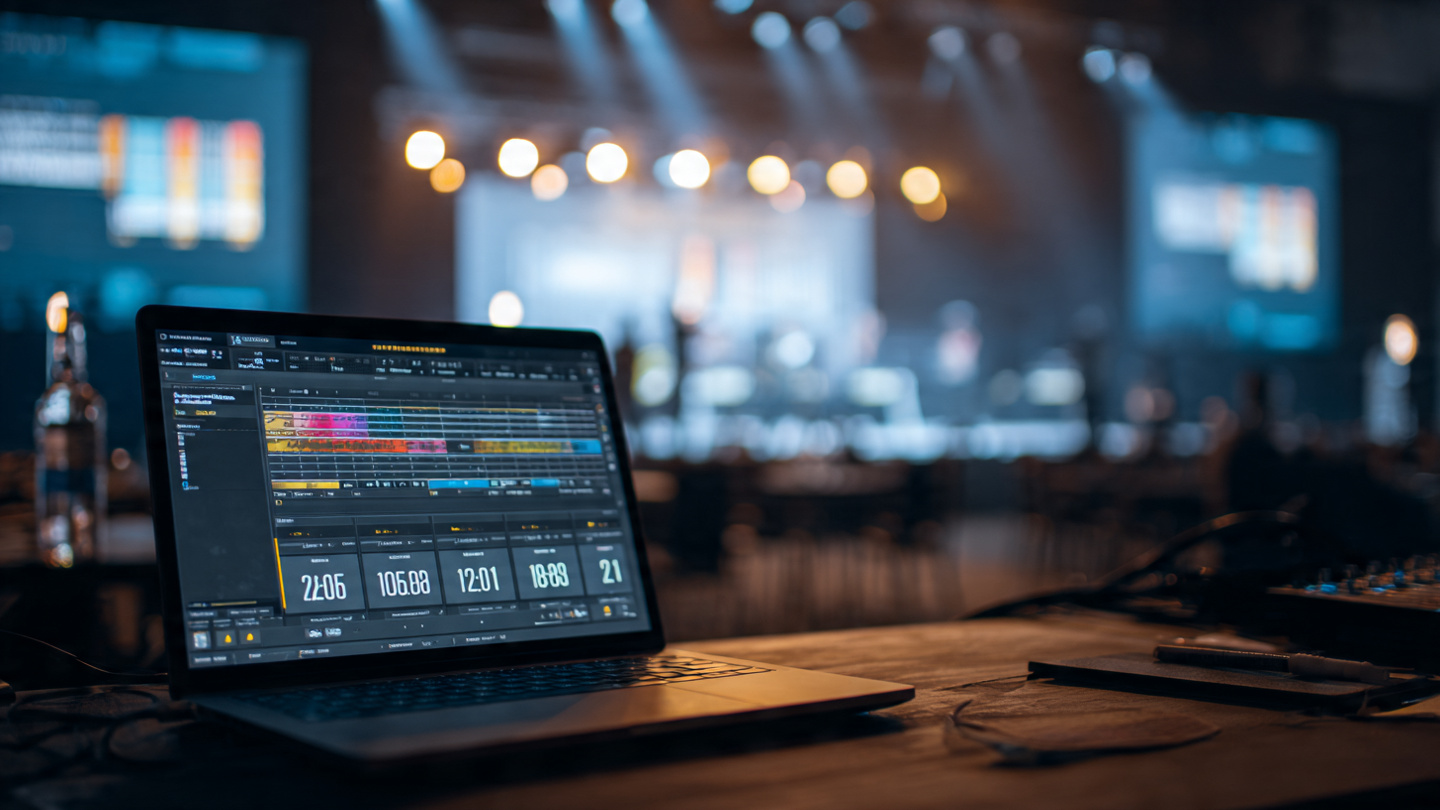
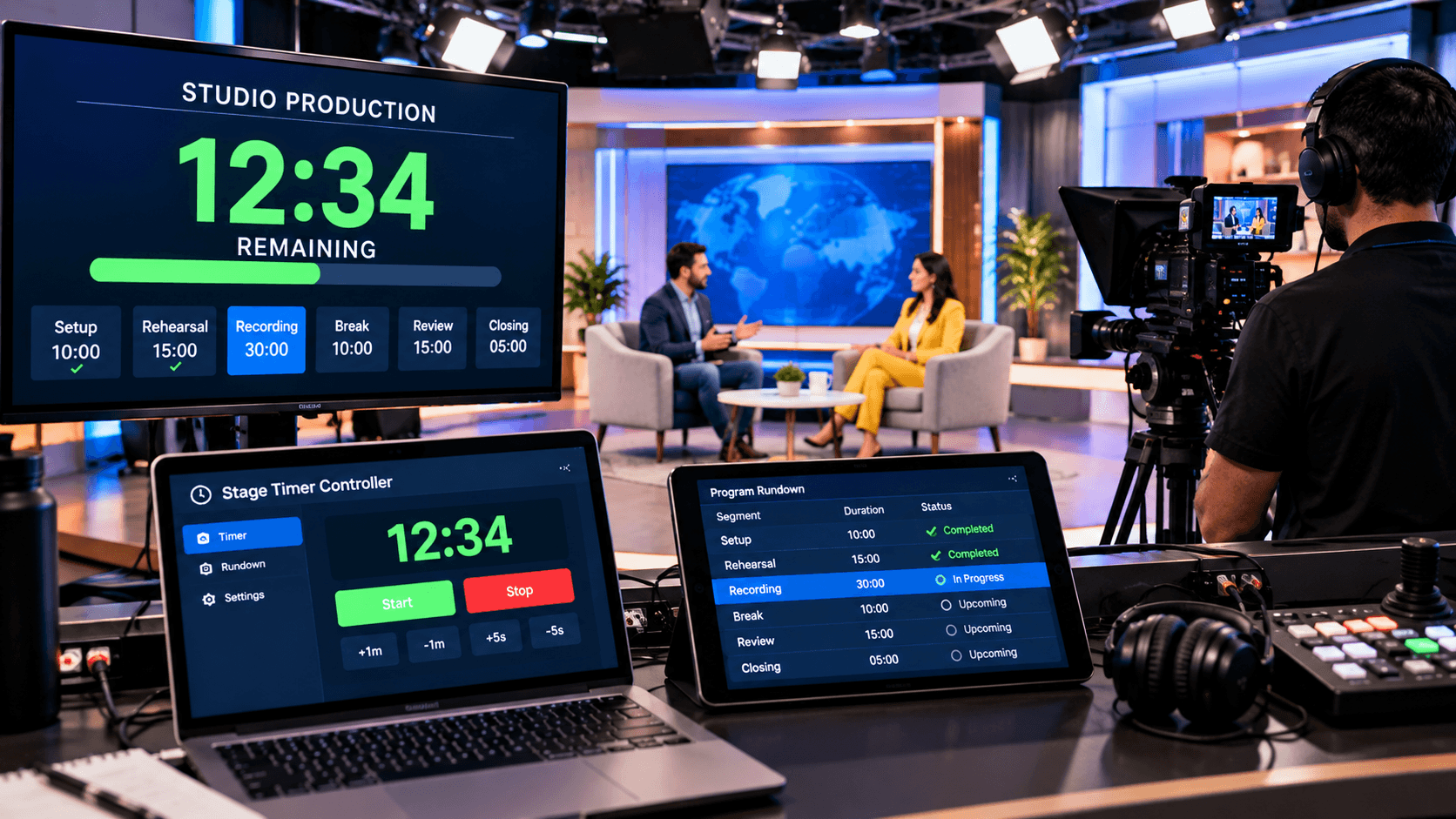
The success of any live event begins with proper planning and setup. The StageTimerControl Dashboard allows you to prepare the entire event's timing structure before showtime. As soon as you open the dashboard, you'll see a clean and easy-to-use interface where you can pre-set individual timers for each segment of your event.
In this setup phase, you can define the time duration for the opening session, presentations, performances, or breaks. Naming each timer and associating it with a specific activity makes it easy to avoid any confusion during the live event. This pre-defined setup frees the event coordinator from constantly checking the clock or manually tracking time.
This preparation before showtime makes live control incredibly smooth. With all the timers ready in advance, your full attention during the event can be focused on execution, not on managing the timing. This is why the StageTimerControl Dashboard lays a strong foundation for professional and stress-free event management.
Step 2: Multi-Timer Configuration – Separate Control for Each Segment:
Live events have varying durations for each activity, making a single timer insufficient. The StageTimerControl Dashboard's multi-timer system allows you to create and manage separate timers for each segment of your event. This prevents sessions from overlapping and maintains a smooth event flow.
The multi-timer setup gives organizers granular control over each speaker, presentation, or performance. Adding a new timer or adjusting an existing one is easy when needed, ensuring the event stays on schedule.
Step 3: Live Control – Real-Time Command During the Event:
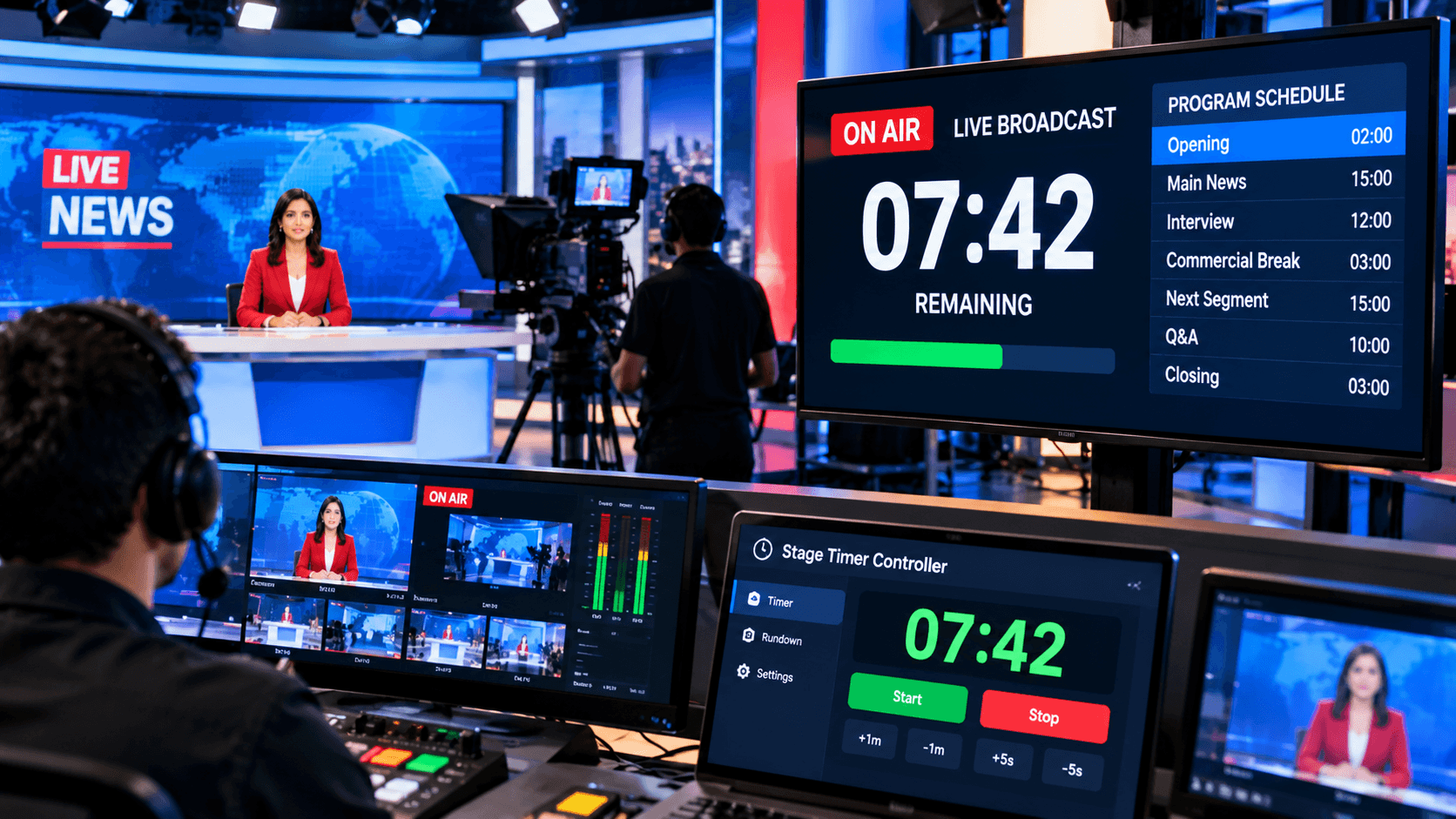
Once the event begins, instant control is paramount. The StageTimerControl Dashboard provides real-time controls such as start, pause, and reset in live mode, giving you complete command over the timing.
If a segment requires unexpected adjustments, the time can be increased or decreased instantly. This flexibility helps handle the uncertainties of live events without stress.
Step 4: Visual Indicators – Non-Verbal Time Cues:
The StageTimerControl Dashboard's visual indicators are invaluable for both speakers and the stage team. Color-based signals clearly show how much time remains and when to wrap up.
These clear visual cues eliminate the need for verbal reminders to speakers. This maintains professionalism on stage and enhances the audience experience.
Step 5: Advanced Controls – Focus, Flash, and Blackout:
Advanced controls are crucial during the peak moments of live events. The StageTimerControl Dashboard's Focus mode directs the audience's attention solely to the timer, while the Flash mode provides a clear visual alert when time is running out.
The Blackout mode helps temporarily hide the screen during transitions and breaks. These advanced features elevate the dashboard from a simple timer to a complete live event control system.
Step 6: Connected Devices – One Dashboard, Multiple Screens:
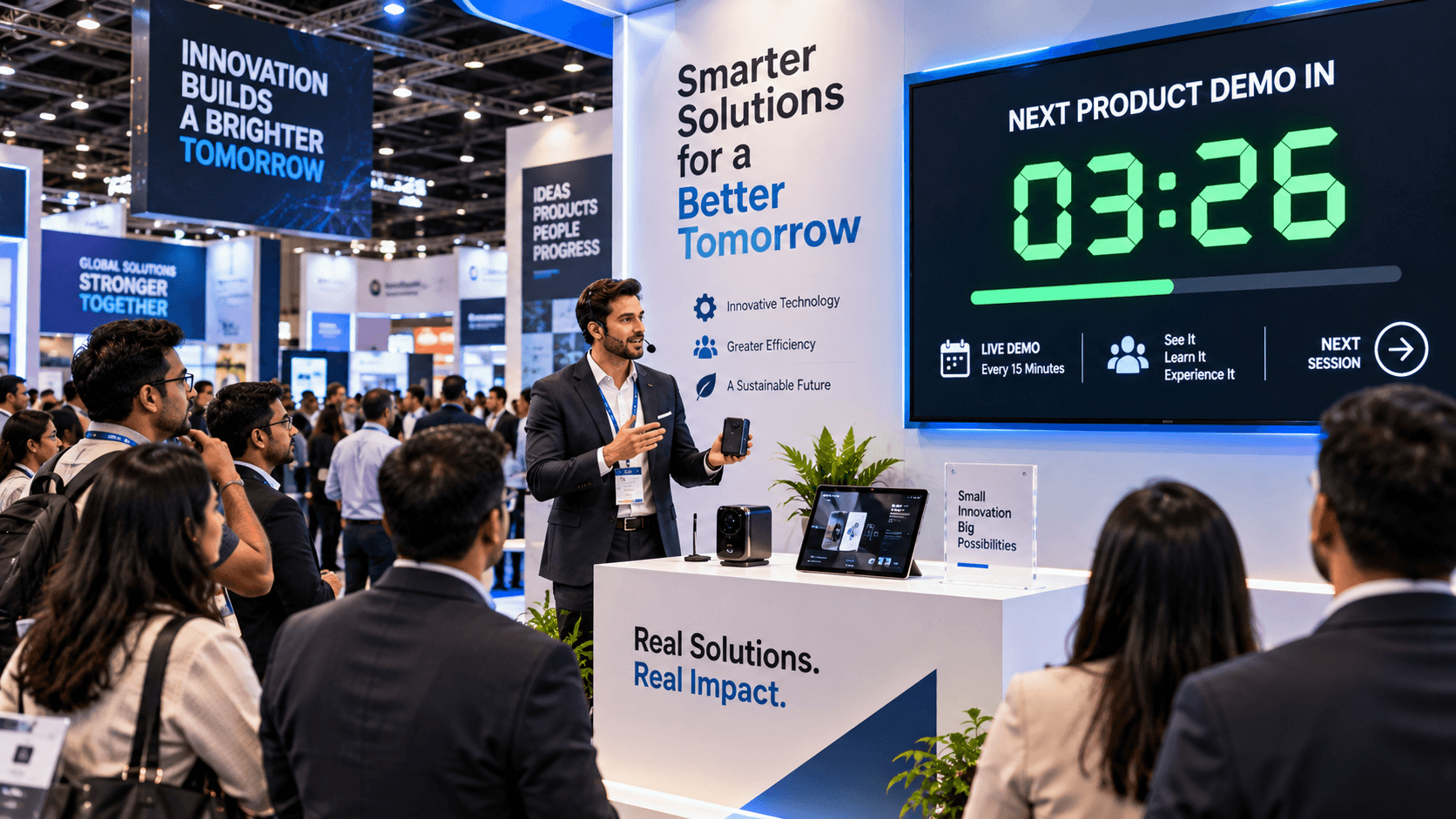
In live events, timing isn't just limited to the controller; it's crucial to display it to the right people. The StageTimerControl Dashboard supports multiple connected devices, allowing you to control different screens from a single dashboard.
Whether it's the speaker's monitor, the audience's LED screen, or the control room display—all devices remain synchronized with the same timer. This ensures clear communication and eliminates any timing confusion during the event.
Step 7: Showtime Execution – The Entire Event, Without Any Confusion:
When the event reaches its most critical phase—showtime—the StageTimerControl Dashboard provides complete reliability and control. All timers are clearly visible, and the controls are instantly responsive, allowing the organizer to manage the event with complete confidence.
This seamless execution results in a smooth, professional, and well-managed live event. Speakers stay on schedule, the audience remains engaged, and the entire event becomes a polished experience.
Key Benefits of StageTimerControl Dashboard:
StageTimerControl Dashboard can be used by professionals such as event organizers, corporate teams, presenters, esports managers, and stage coordinators. This dashboard ensures complete time discipline in live events.
Multi-timer management, real-time control, and clear visual alerts prevent events from running over time. Its simple interface is easy for beginners, while the advanced features are powerful for professionals – this balance makes it ideal for all types of live events.
Conclusion:
In live events, timing is not optional – it's the foundation of professionalism.
StageTimerControl Dashboard makes every phase, from setup to showtime, smooth and takes live events to the next level.
If you want your event to run on time, look professional, and be stress-free, StageTimerControl Dashboard is a reliable and smart solution.