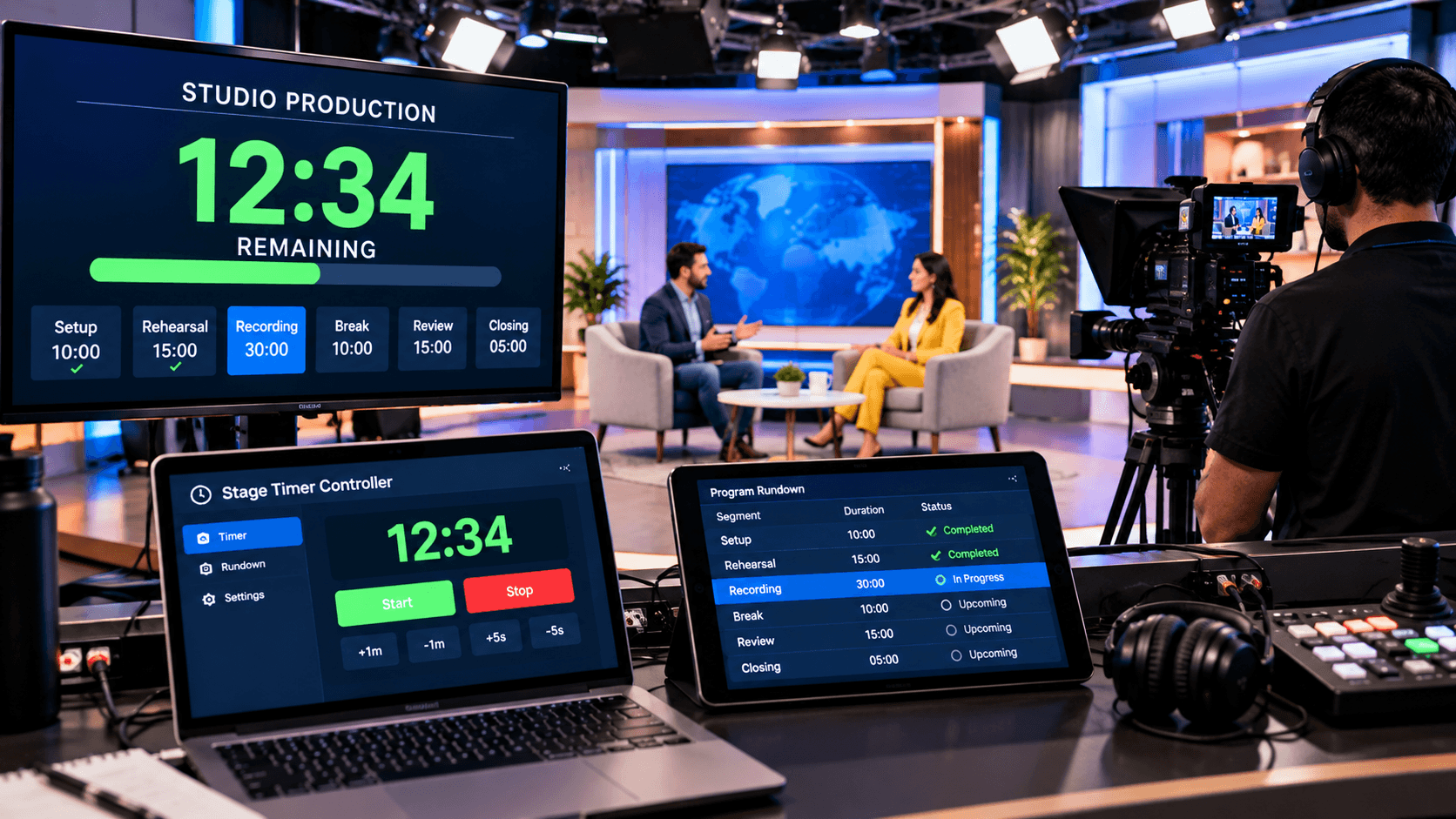
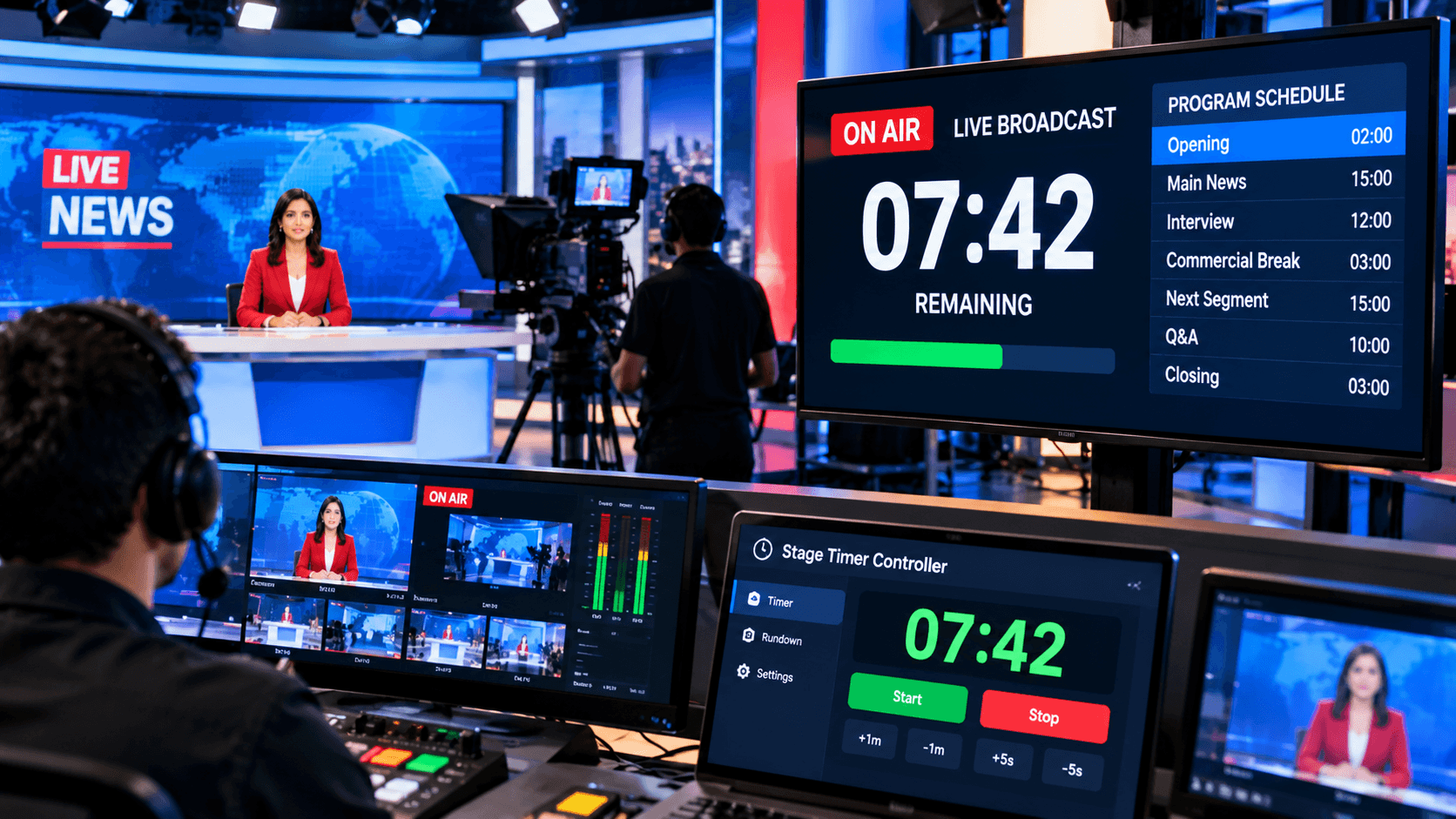
Today, live events, webinars, video productions, conferences, esports matches, church services, and broadcast shows have become more fast-paced, technical, and precise than ever before. Every second counts—and a small time error can impact the entire production flow. This is where Stage Timer Controller Dashboard comes in as a powerful, intuitive, and highly professional solution.
It's not just an online timer—it's a complete event time management tool that keeps organizers, speakers, and production crews perfectly synchronized in real-time. The Dashboard's design is minimal, responsive, and multi-device friendly—meaning you can easily run it anywhere, from a mobile device to a large LED screen.
It's biggest advantage is that it makes the event workflow seamless with features like custom event timers, linked timers, scheduled modes, color-coded alerts, notes, labels, speaker-specific indicators, multi-device control, and visual attention signals (Flash, Blackout, Focus).
If you want to make your event smooth, organized, and delay-free, Stage Timer Controller Dashboard can completely transform your production quality.
Dashboard Overview – Understanding the Main Interface:
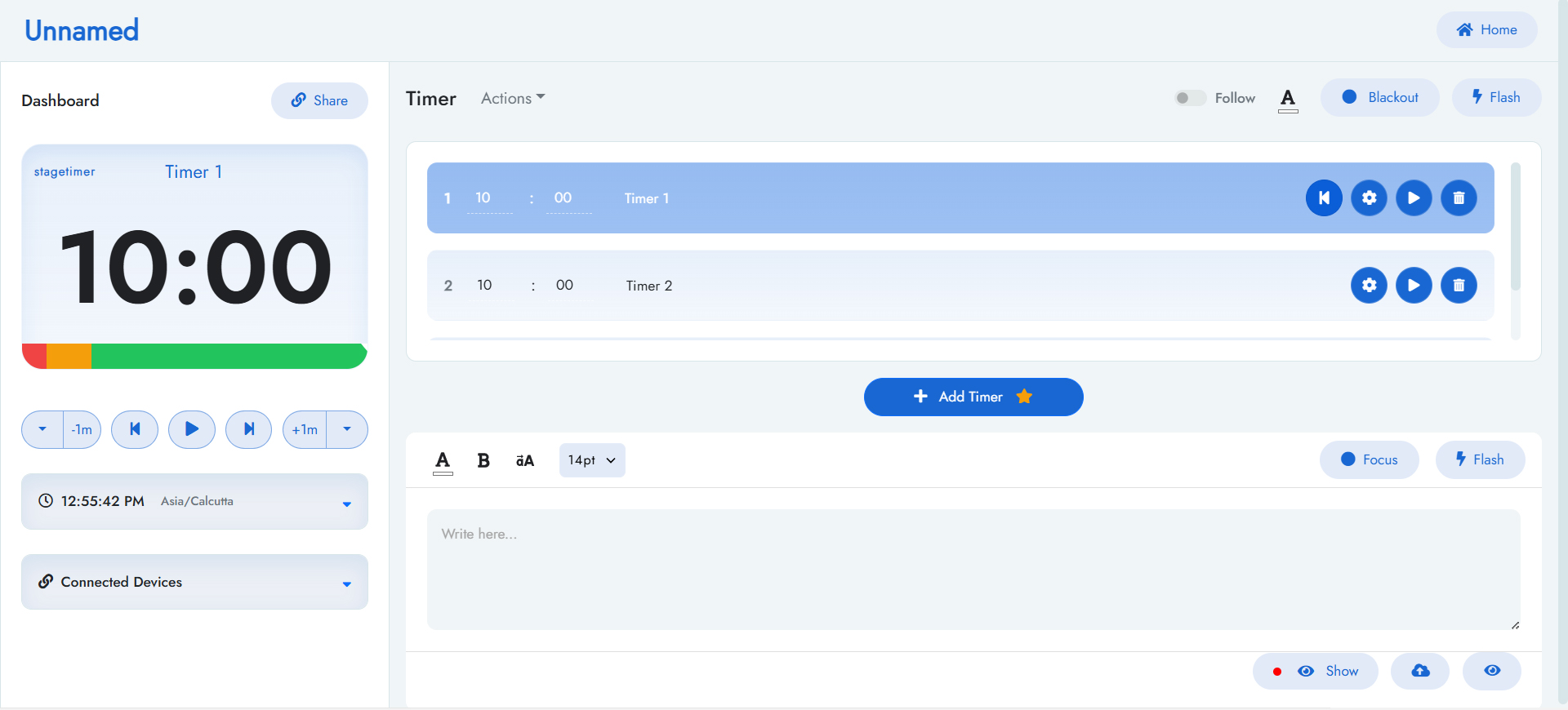
Stage Timer Controller's dashboard is designed to make it easy for anyone—whether an event organizer, presenter, or part of the production team—to understand the entire interface at first glance. The dashboard's layout is clean, modern, and distraction-free, allowing users to get started immediately without any learning curve.
The first section of the dashboard is the Timer Setup Panel, where you create custom timers for your event. Here, you can set details like the timer's name, duration, labels, and color coding. Its most important feature is that you can add as many timers as needed and easily reorder them by dragging and dropping them.
The second major section is the Timer Control Panel, which provides real-time control while the event is running. From here, you can start, pause, resume, or reset the timer. If the event changes for any reason, you can increase or decrease the timer's duration in real-time. This control panel is ultra-responsive, allowing the production team to make accurate decisions every second. Timing is the biggest challenge in any live event, and this panel makes that challenge completely simple.
The third important component of the Dashboard is the Controller and Viewer Links system, which makes multi-device synchronization seamless. The Controller link is provided to the event director or show caller so they can control the entire event. The Viewer link is provided to the speaker, anchor, performer, or remote participant, where they only see the timer in a clean interface—without any complicated options or distractions.
Customization Features — Time, Labels, Notes:
Stage Timer Controller's greatest strength is its advanced customization capabilities, which provide complete freedom to shape every type of event to your needs. First comes Time Customization, where you can set the exact duration for each segment or session—whether it's a 30-second announcement, a 10-minute presentation, or a 1-hour panel discussion. You can not only preset the timer duration, but also increase or decrease it in real-time while the event is ongoing.
After time settings, the most powerful customization is Label Customization, which makes your event structure visually organized and easy to understand. Labels help you clarify which timer is for what purpose—such as “Introduction,” “Q&A,” “Break,” “Session 1,” “Performance,” or “Transition Setup.” This color-coded labeling system eliminates confusion and lets the crew quickly understand which phase is happening when.
An equally powerful part of customization is Notes, which allows you to save additional instructions for each segment of the event. In Notes, you can add important instructions—like “Mic needs to be changed,” “Speaker will enter from stage left,” “Camera angle switch required,” “Sponsor mention at the end,” or “Insert lower third.” This feature keeps the entire team on the same page, as both the controller and presenter can see these notes during the live session.
Visual Alerts – Flash, Blackout, Color Coding & Focus:
Visual alerts in Stage Timer Controller make your event timing more clear and attention-focused. When the timer reaches its final stage, Flash Alert immediately alerts the presenter and production team by flashing the screen, ensuring no segments run out of time. Blackout Mode is a powerful visual cue that suddenly darkens the timer, ensuring critical moments—like a session ending or transition—are not missed.
Color Coding, along with this, gives each timer a meaningful visual identity, reducing confusion in multi-segment events. The most useful feature is Focus Mode, which highlights a single timer or segment so the presenter can focus on only the most important information. This visual alert system makes timing accuracy effortless in every environment, including conferences, livestreams, studios, esports, and classrooms.
Multi-Device Control and Sharing:
The biggest advantage of the Stage Timer Controller is that it can be controlled and viewed from multiple devices simultaneously. The Controller link gives the event director or technical operator complete control—allowing them to start, pause, reset, or modify the timer. Meanwhile, the Viewer link provides presenters, anchors, performers, or remote participants with a real-time visual timer display.
This separation of control and viewing gives each person the right interface for their needs, making event coordination extremely smooth. The sharing system is also extremely simple and instant. You simply copy a link and send it to your team or presenters—and they connect instantly on any mobile, tablet, laptop, or studio screen.
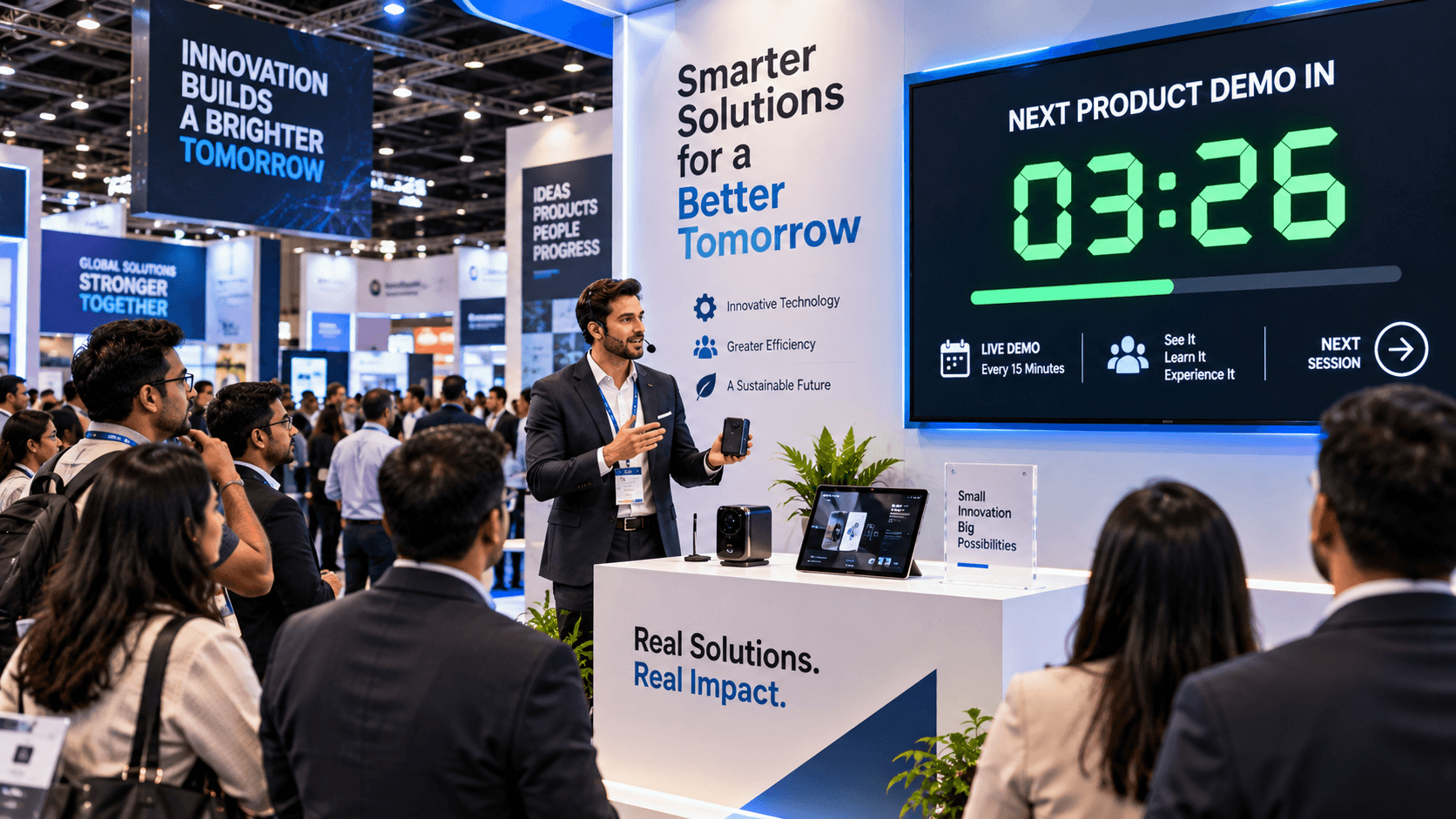
The most important thing about this multi-device sync is that the timer remains perfectly aligned, even when connecting from anywhere in the world. Whether it's hybrid conferences, livestream productions, esports matches, classroom sessions, or trade shows—this system ensures that the entire event runs in a unified timing rhythm, without any communication gaps or delays.
Real-Time Adjustments Features like Pause / Extend / Reset:
One of the biggest challenges with live events is that timing doesn't always go according to plan. Stage Timer Controller's Real-Time Adjustment features make this challenge much easier. You can pause the timer at any time during the event—whether you need to give a speaker extra instructions, technical setup needs some time, or there's an unexpected delay in a segment. The Pause feature gives both the presenter and production team breathing room, allowing the event flow to proceed smoothly without wasting time.
Furthermore, the Extend and Reset features make event control even more flexible. If a presentation, panel discussion, or performance needs a few extra minutes, you can quickly extend the duration, and all connected devices instantly display the updated time. Reset, meanwhile, restores the timer to a clean slate in preparation for the next session. All these real-time adjustments ensure that event directors can maintain complete command of timing in every situation—whether it's conferences, livestreams, studios, classrooms, or esports events.
Conclusion:
All these features combined make Stage Timer Controller an all-in-one solution that not only increases time accuracy but also improves event workflow, team coordination, and presenter confidence. If you're looking to make your events more professional, organized, and predictable, this tool is an indispensable partner in every scenario. Perfect timing makes a perfect event—and Stage Timer Controller makes it effortless.